




How to Get a Job on Indeed: Step-by-Step Guide for Job Seekers
Finding a job online can be frustrating. You search for hours, send applications, and sometimes hear nothing back. The good news is that platforms like Indeed can make the process more organised and give you access to thousands of job opportunities in different industries and locations.
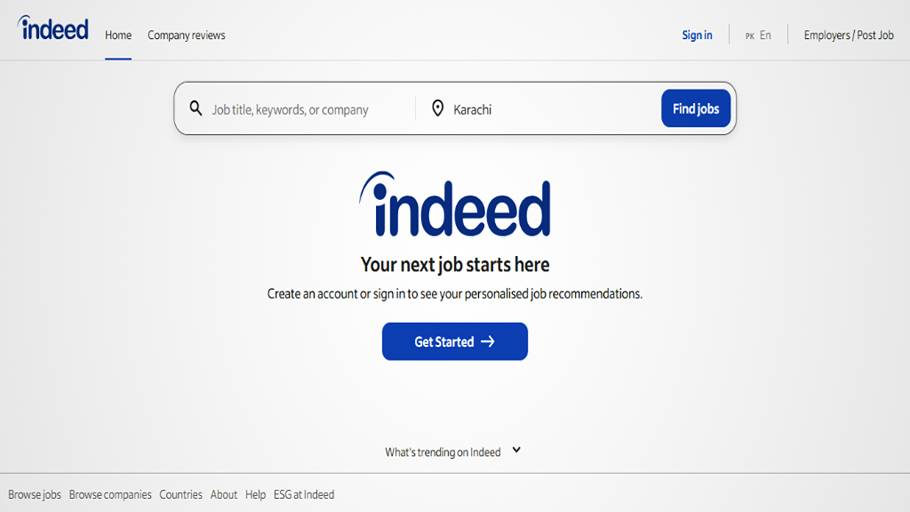
Finding a job online can be frustrating. You search for hours, send applications, and sometimes hear nothing back. The good news is that platforms like Indeed can make the process more organised and give you access to thousands of job opportunities in different industries and locations.
But getting a job on Indeed is about more than simply creating an account and clicking Apply on every listing you see. Your profile, resume, job preferences, application quality, and the way you present your experience all matter.
If you’re wondering How to Get a Job on Indeed, this guide will walk you through the entire process, from creating your account and building your profile to uploading your resume, finding suitable jobs, applying correctly, and improving your chances of getting noticed by employers.
What Is Indeed?
Indeed is an online job search platform where people can search for jobs based on position, skills, company, location, and other preferences.
Depending on the job, you may be able to apply directly through Indeed, while some employers send applicants to their own website to complete the application.
Indeed also allows job seekers to create profiles containing their experience, education, skills, qualifications, and job preferences. A complete and updated profile can help with job matching and may make it easier for employers to discover suitable candidates.
How to Get a Job on Indeed: Start With a Strong Profile
Before applying for jobs, take some time to build your profile properly.
Think of your Indeed profile as your online introduction to an employer. If it is incomplete or contains very little information, an employer may have no reason to consider you further.
Your profile should clearly show:
- Your current or target job title
- Work experience
- Education
- Relevant skills
- Certifications and licenses
- Languages
- Preferred job locations
- Desired employment type
- Remote, hybrid, or on-site preferences
- Salary expectations where applicable
Indeed recommends keeping your profile complete and up to date because the information can help with job matching and make it easier for employers to understand your qualifications.
Step 1: Create an Indeed Account
The first step is simple.
Visit Indeed and select the option to sign in or create an account. Use an email address that you regularly check because it may be used for communication related to your job search.
Once your account is created, complete the basic information and move to your profile.
Don’t rush through this part. The account itself only gives you access to Indeed. Your profile is what helps present you as a candidate.
Step 2: How to Create an Indeed Profile
Now let’s look at How to Create an Indeed Profile that actually helps your job search.
Start by entering your basic information and then work through the different profile sections.
Add Your Work Experience
List your most recent and relevant positions first.
For each role, include:
- Job title
- Company
- Employment dates
- Main responsibilities
- Important achievements
Try to focus on results instead of simply listing duties.
For example, instead of:
Managed social media accounts
write:
Managed social media campaigns across multiple platforms and increased audience engagement through targeted content and paid campaigns.
The second version tells the employer much more about what you actually did.
Add Your Skills
Add skills that are genuinely relevant to the jobs you want.
For example, a digital marketing professional might include:
- SEO
- Social Media Marketing
- Google Ads
- Content Marketing
- Email Marketing
- Analytics
Don’t add random skills just because they appear in job descriptions. Your profile should accurately represent your abilities.
Add Education and Certifications
Include your degree, diploma, training, certifications, licenses, and other qualifications that are relevant to your target jobs.
Indeed’s current profile guidance recommends adding relevant skills and credentials and keeping this information updated.
Step 3: Set Your Job Preferences
Your job preferences help Indeed understand what kind of work you are looking for.
Depending on the options available to you, you can specify things such as:
- Job titles
- Employment type
- Work schedule
- Location
- Salary range
- Remote or hybrid work
- Relocation preferences
- Commute preferences
- Availability
For example, if you’re looking for remote software development work, don’t leave your preferences broad if you already know what you want.
Being specific can help you see more relevant opportunities.
Step 4: Prepare a Professional Resume
Your resume is still one of the most important parts of your application.
Before you upload it, make sure it is easy to read and focused on the job you want.
A basic resume should include:
Contact Information
Add your name, professional email address, phone number, and location.
Professional Summary
Write a short introduction explaining your experience and main strengths.
Work Experience
Mention your previous jobs and focus on achievements and relevant responsibilities.
Education
Add your academic qualifications.
Skills
Include technical and professional skills related to the position.
Certifications
Add relevant certifications, licenses, and professional training.
Keep the Design Simple
Don’t fill your resume with graphics, photos, complicated layouts, or unnecessary design elements.
Indeed specifically advises against scanned resumes, photos or graphics, and two-column layouts when uploading a resume file.
A clean, text-based resume is usually a safer choice because it is easier to read and process.
Step 5: How to Upload a Resume on Indeed
Once your resume is ready, you can upload it to your Indeed profile.
If you’re asking How to upload a resume on Indeed, the current process is straightforward:
- Sign in to your Indeed account.
- Open your Profile.
- Go to the Resume section.
- Select Upload your resume.
- Choose your resume file from your device.
- Preview the document.
- Select Upload this resume.
- Review your profile and make any necessary corrections.
Indeed says uploaded resume files are automatically converted to PDF to make them easier for employers to view.
Indeed also allows users to manage uploaded resumes through the Resume options menu, including options for replacing or managing the file.
Can You Upload Your LinkedIn Profile to Indeed?
Yes. Indeed’s current guidance explains that you can save your LinkedIn profile as a PDF and upload that file as your resume on Indeed.
However, don’t simply upload it and forget about it. Review the information after uploading and make sure your Indeed profile accurately reflects your current experience.
Step 6: Search for the Right Jobs
Now comes the part most people are familiar with: searching for jobs.
Use specific job titles rather than very broad searches.
For example:
Instead of:
Marketing
Try:
Digital Marketing Specialist
Or:
Instead of:
IT
Try:
IT Support Specialist
You can also search by location.
For example:
What: Graphic Designer
Where: Dubai
Or:
What: Software Engineer
Where: London
If you’re looking for remote work, use remote job preferences and relevant search terms.
Step 7: Read the Job Description Before Applying
Don’t apply just because the job title sounds interesting.
Read the complete job description and check:
- Required experience
- Education
- Technical skills
- Certifications
- Location
- Work schedule
- Salary
- Responsibilities
- Application requirements
If you match most of the important requirements, the position may be worth applying for.
If you clearly don’t meet a major requirement, move on to another opportunity instead of sending dozens of random applications.
Step 8: How to Apply for Jobs on Indeed
So, How to Apply for Jobs on Indeed correctly?
Once you’ve found a suitable position, select the application option provided on the listing.
Depending on the employer, you may either apply directly through Indeed or be redirected to the company’s website. Indeed’s application process can therefore vary from one job to another.
Before submitting an application:
- Read the job description again.
- Make sure you meet the important requirements.
- Select the correct resume.
- Add a cover letter if requested or useful.
- Answer all questions honestly.
- Check your contact information.
- Review your application.
- Submit it.
Take an extra minute to check for spelling mistakes. A careless error in your name, email address, phone number, or professional summary can create an unnecessary problem.
Step 9: Customize Your Resume for the Job
One of the biggest mistakes job seekers make is using exactly the same resume for every position.
Imagine you’re applying for two different jobs:
Job 1: SEO Specialist
You should highlight:
- Keyword research
- On-page SEO
- Technical SEO
- Google Search Console
- Analytics
Job 2: Social Media Manager
You should give more attention to:
- Content strategy
- Social media management
- Campaign planning
- Paid advertising
- Audience growth
Your experience may be the same, but the way you present it should match the job.
Step 10: How to Get Noticed by Employers on Indeed
If you’re asking How to get noticed by employers on Indeed, start by making your profile complete and relevant.
Indeed’s current guidance says that a complete, up-to-date profile with employer visibility enabled can improve the chances of being discovered by employers.
Here are some practical things you can do.
Use Relevant Job Titles
If your actual experience is in digital marketing, don’t use a vague title such as:
Online Worker
Use an accurate title such as:
Digital Marketing Specialist
This makes your professional background much clearer.
Highlight Real Achievements
Don’t only describe what you were responsible for. Show what you achieved.
For example:
Managed paid advertising campaigns
is less powerful than:
Managed paid advertising campaigns that improved website traffic and lead generation.
Whenever possible, include real numbers.
Keep Your Profile Updated
If you complete a certification, start a new job, learn a new skill, or change your career goals, update your profile.
Indeed recommends keeping profile information current so that job matching and employer evaluation are based on accurate information.
Enable Employer Visibility
If you’re comfortable with employers discovering your profile, check your privacy settings and enable Employers can find you.
Indeed says this setting allows employers to discover eligible profile information and potentially contact you about opportunities.
Step 11: Use the Same Language Employers Use
This doesn’t mean stuffing your profile with keywords.
Instead, pay attention to the wording employers naturally use in the jobs you’re targeting.
For example, if several relevant job listings mention:
- WordPress
- SEO
- Google Analytics
- Content Management
- Search Console
and you genuinely have those skills, make sure they are clearly mentioned in your profile and resume.
Indeed also recommends mirroring the language used in target roles while keeping the information accurate to your actual experience.
Step 12: Write a Good Cover Letter
Not every Indeed job requires a cover letter, but when one is requested or would add value, don’t submit a generic paragraph.
A good cover letter should briefly explain:
- Which position you’re applying for
- Why you’re interested
- What relevant experience you have
- What you can bring to the company
Keep it short and specific.
The goal isn’t to repeat your entire resume. It’s to give the employer a reason to take a closer look.
Step 13: Should You Contact Employers Directly?
If a legitimate job listing provides contact information or instructions for contacting the employer, you can follow them.
Keep your message professional.
For example:
Hello, I recently applied for the Digital Marketing Specialist position and wanted to express my interest in the opportunity. I have experience in SEO, social media marketing, content creation, and paid campaigns. I would be happy to discuss how my experience could contribute to your team. Thank you for your time.
Don’t send multiple messages if the employer doesn’t respond. One professional follow-up is enough.
Step 14: Set Up Job Alerts
You don’t need to spend the entire day searching for jobs.
Set up alerts for the positions and locations you’re interested in. This can help you discover new opportunities without repeatedly searching from scratch.
Create separate searches if you’re interested in several related positions.
For example:
- SEO Specialist
- Digital Marketing Specialist
- Content Marketing Specialist
- Social Media Manager
This gives you a wider range of relevant opportunities without making your search too broad.
Step 15: Track Your Applications
If you’re applying for multiple jobs, keep a record of them.
You can use a simple spreadsheet with:
| Company | Position | Date Applied | Location | Resume | Status |
|---|---|---|---|---|---|
| Company A | SEO Specialist | March 10 | Dubai | SEO CV | Applied |
| Company B | Marketing Executive | March 11 | London | Marketing CV | Interview |
| Company C | Content Writer | March 12 | Remote | Content CV | Waiting |
This makes it much easier to remember which companies you’ve contacted and which resume you used.
Common Indeed Job Search Mistakes to Avoid
Applying to Every Job
More applications don’t automatically mean better results.
Focus on relevant jobs where your experience matches the employer’s requirements.
Leaving Your Profile Half Empty
A profile with only your name and one skill doesn’t tell an employer much.
Complete as many relevant sections as possible.
Using an Unprofessional Email Address
Use a simple email address based on your name if possible.
Uploading a Poor Resume
Avoid blurry scans, photos of resumes, complicated graphics, and two-column designs. Indeed recommends a clean format for uploaded resume files.
Lying About Your Experience
Never add skills, qualifications, or experience that you don’t actually have.
Applying Without Reading
Always read the job description before submitting an application.
Using One Resume for Everything
A resume designed for an accounting position may not be the best resume for a marketing role.
Adjust it when necessary.
How Many Jobs Should You Apply for on Indeed?
There isn’t a magic number.
Instead of setting a goal like 50 or 100 applications per week, focus on sending applications that actually make sense for your background.
Ten well-targeted applications can be more useful than dozens of applications sent without reading the job description.
The quality of your application matters.
How Long Does It Take to Get a Job Through Indeed?
There is no fixed timeline.
Some candidates may hear back within a few days, while others may spend weeks or months searching.
Your results can depend on your industry, experience, location, qualifications, competition, and the number of available jobs.
Don’t get discouraged if you don’t receive a response immediately.
Keep improving your profile, applying to suitable positions, and adjusting your strategy based on the responses you’re getting.
Frequently Asked Questions
Is Indeed free for job seekers?
Yes, job seekers can use Indeed to search for jobs and apply to available positions without paying a fee for the basic job-search service.
Do I need a resume to apply for jobs on Indeed?
Not every job has exactly the same requirements, but having a professional resume is strongly recommended. Some employers may request a resume as part of the application.
Can employers find my Indeed profile?
Yes, depending on your profile privacy settings. Indeed provides an Employers can find you option for users who want employers to discover their profiles.
Can I apply for jobs without an Indeed profile?
Some job listings may direct you to an employer’s website, where you can complete the application there. However, creating and completing an Indeed profile can make the job search and application process more convenient.
Can I upload more than one resume?
Indeed provides resume management options, and the platform’s current tools allow job seekers to manage uploaded resumes and resume versions.
What file should I use for my Indeed resume?
A clean document is recommended. Indeed advises against scanned resumes, photos, graphics, and two-column layouts for uploaded resume files.
How can I improve my chances of getting an interview?
Build a complete profile, use a clear resume, apply to jobs that match your experience, customize your application when appropriate, and keep your information updated.
Should I apply for jobs I’m not fully qualified for?
If you meet most of the important requirements and can genuinely perform the work, it can still be worth applying. However, avoid spending most of your time applying to positions where you clearly don’t meet essential requirements.
Final Thoughts
Getting a job through Indeed doesn’t have to be complicated, but it does require a little more effort than simply pressing the Apply button.
Start by creating a complete profile, add your real experience and skills, prepare a clean resume, and upload it correctly. Then search for jobs using specific titles, read the requirements carefully, and send applications that are genuinely relevant to your background.
If you want employers to discover you, keep your profile updated and consider enabling employer visibility. Most importantly, focus on quality rather than sending the same application to every job you find.
With a strong profile, a targeted resume, and a consistent approach, Indeed can become a useful part of your overall job search.
How to Get a Job in Norway: Jobs, Requirements and Tips
Continue using AI Cursor?Keep it onTurn Off



Comments